The Need-to-Know for Confluence app provides a macro that creates a Need-to-Know Portal when placed on a Confluence page.
There can be multiple such portals in a space or site.
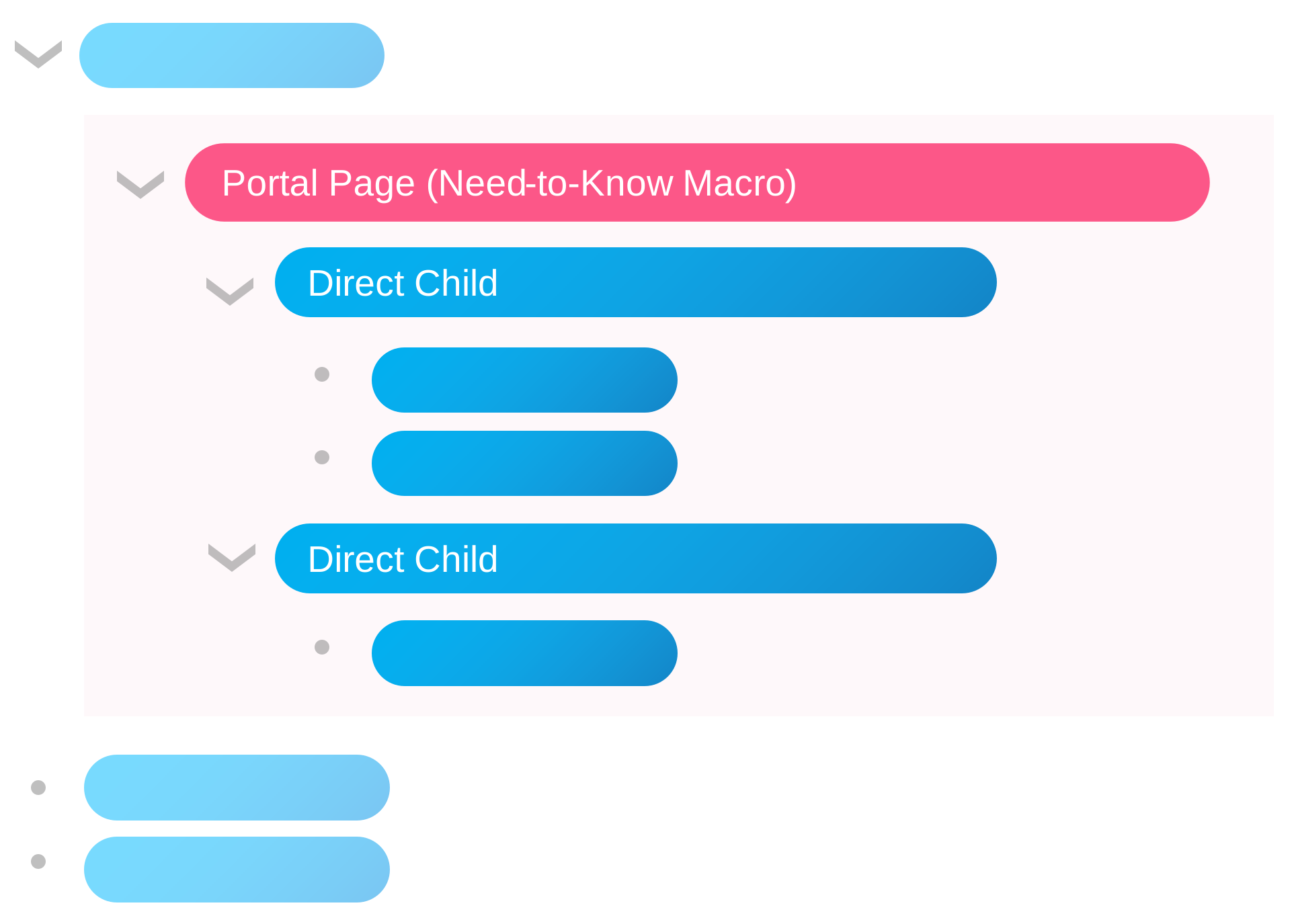
A page hierarchy, each horizontal bar being a page. The Need-to-Know macro has been placed at the top of the sub-hierarchy that needs the need-to-know principle applied to.
The portal monitors access to all descendant content (pages, whiteboards, databases, etc.; any level below the portal page) and will remove access for users who didn’t view any content for a configured time period.
You define the permission baseline for the portal by restricting access to the portal page. Use the Confluence way of doing this. Set restrictions for users and groups that should be able to access all descendant pages. Usually, this is a group of people like a project team or a department.
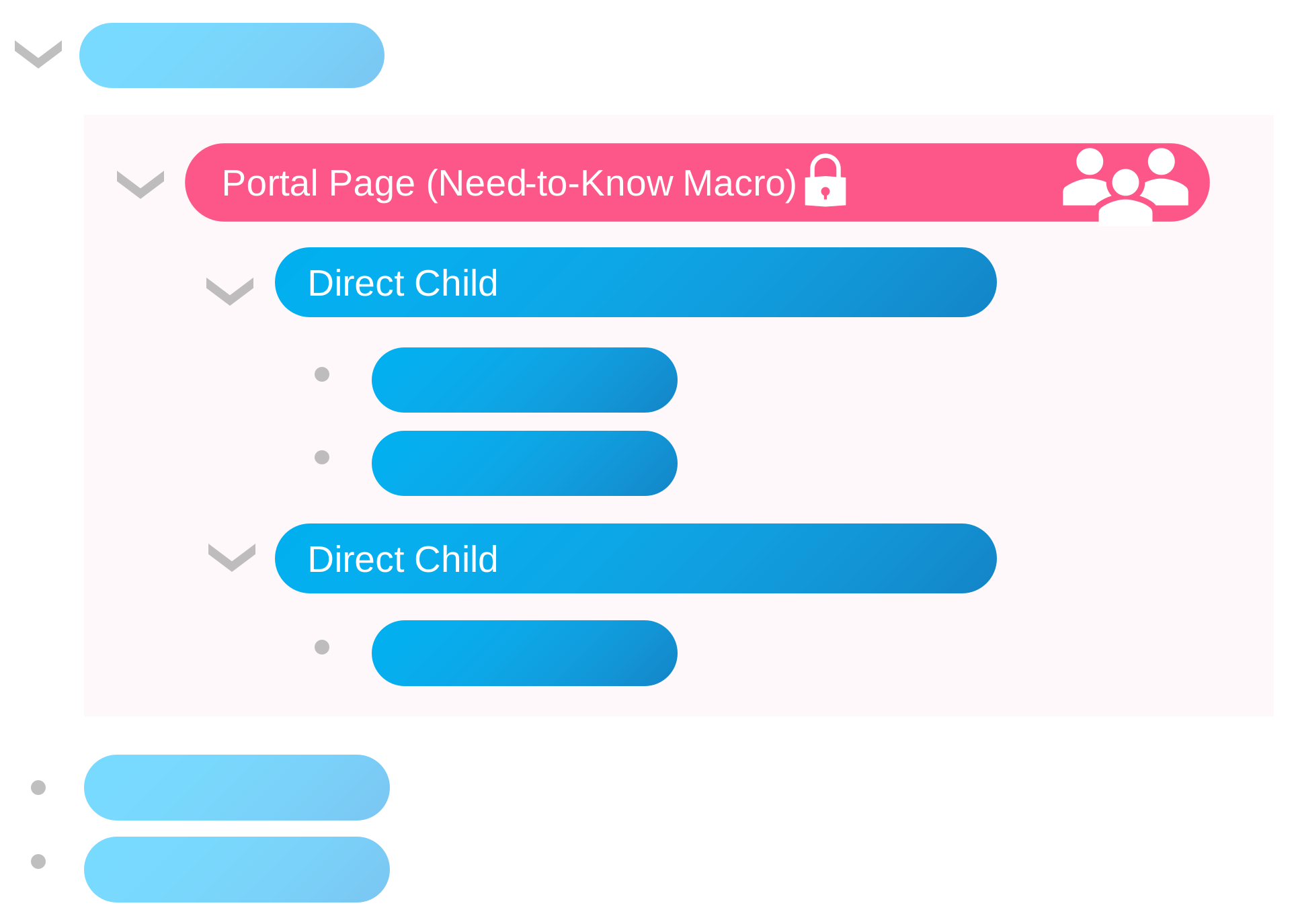
Restrictions on the portal page define the permission baseline for the Need-to-Know portal.
Activate the portal and the Need-to-Know Portal will start adopting direct children to manage their restrictions.
To be able to remove user access to descendants of the portal page, the Need-to-Know app copies the portal’s restrictions to all direct children and starts managing them. It makes one adjustment while copying the restrictions to direct children: all groups will be flattened, only single user accounts will be added to the children’s restrictions.
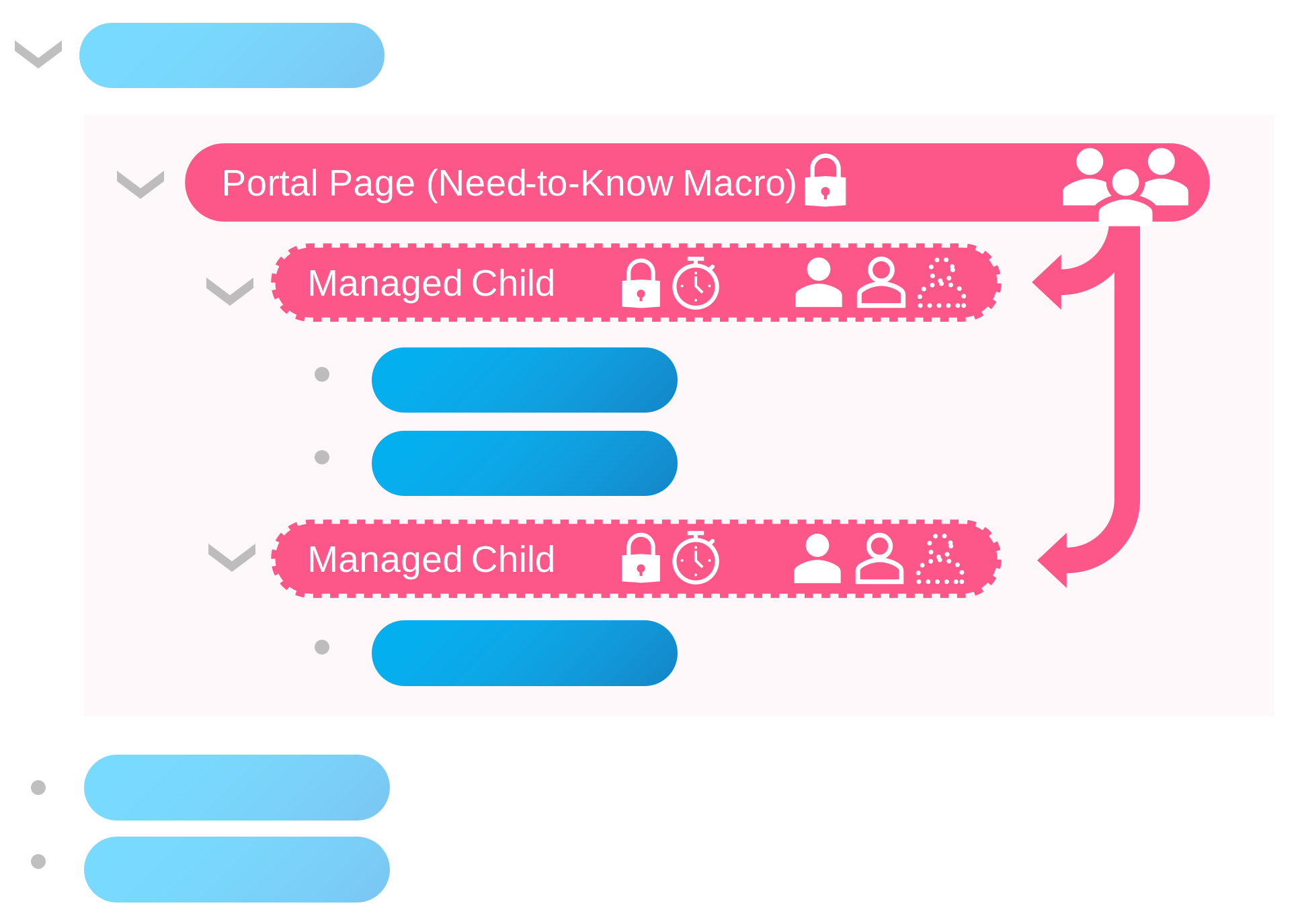
The Need-to-Know portal adopts direct child pages, managing their restrictions from then on. Users that don't access descendants for a set time span will be automatically removed from the restrictions list, losing access.
Let’s say you restrict access to the portal to user groups awr-aero-viewers and awr-lead-engineers, where those groups have 10 members each. After applying the portal’s restrictions to direct children, the restriction setting for those will show 20 user accounts (plus the portal admins and the app account).
With those single user restrictions applied, the portal can remove the access for single user accounts by simply removing them from the restrictions of direct children.
Notes
The portal will never change the restrictions of its portal page because this is the permission baseline you set.
If not-yet-adopted direct children of a portal page already have restrictions set, the portal will ignore those children.
Once a portal has adopted a child page, it will manage its restrictions. When the restrictions of adopted direct children are changed, the portal might reset them.
The portal can never widen the restrictions of descendant pages beyond the baseline that is defined via the portal page. This is how Confluence restrictions work. Going deeper down the page tree, you can narrow the restrictions, but you can not widen them.
Limitations
The portal supports up to 100 users as permission baseline. This is the sum of all single user accounts and accounts from all user groups that you set as restrictions for the portal page.
When group members are added to groups which define a portal permission baseline, the app won’t recognize this group member change and the new members won’t be able to access the portal right away. The Atlassian Forge platform doesn’t provide a “group changed” event to listen to. Portal admins have to click the Update Now button to apply the added group members to managed child content. Note that removing users from a group will take effect immediately, as this is enforced by the portal page’s restrictions.
Guest users are currently not supported as those are not supported by the Atlassian Forge platform. Atlassian is working on enabling that scenario.